Container to Bootable VM - The Complete Guide
Everything you need to know about converting Docker containers to bootable VM images, from concepts to troubleshooting
I have been working with containers and VMs for quite some time, and one thing that always bugged me was: can I just take a container and boot it like a VM? Turns out, you can't directly - but with some work, it's totally doable. This guide will walk you through everything from the concepts to actual implementation and troubleshooting.
Why can't containers just boot?
Before we dive in, let's understand why this is even a problem. If you've ever wondered why you can't just take an Alpine container and boot it in QEMU, here's the deal.
What's inside a container image
Container images only contain the application layer stuff:
/bin,/sbin,/usr/bin- your executables/lib,/lib64- shared libraries/etc- configuration files/home,/root- user data
What they DON'T have:
- No kernel (
/boot/vmlinuz) - No bootloader (GRUB)
- No init system (systemd/OpenRC)
- No
/etc/fstab
This makes total sense because containers share the host kernel. When you run docker run alpine, the Alpine container uses YOUR machine's kernel. It's more like a fancy process isolation than a real machine.
What a VM needs to boot
A VM is a completely different story. When QEMU starts, it goes through the actual boot process:
BIOS/UEFI → GRUB (bootloader) → Kernel → Init (PID 1) → Your services
Each of these components must exist in the disk image. Miss any of them and you get a kernel panic or a black screen.
How the conversion works
The conversion pipeline is pretty straightforward once you understand what's missing:
Container Image → Extract filesystem → Create disk → Add boot stuff → Done
Let me break down each step.
Step 1: Extract the filesystem
First, we need to get the container's filesystem as a flat tarball. Container images are layered (that's the whole UnionFS/OverlayFS thing), but we just want one flat filesystem.
docker create --name tmp alpine:latest
docker export tmp -o rootfs.tar
docker rm tmp
The docker export command flattens all layers into one tar file. Easy.
Step 2: Create a disk image
Next, we need an actual disk that can be booted. This means creating a file, attaching it as a loop device, and partitioning it.
# Create a 2GB blank file
dd if=/dev/zero of=disk.img bs=1M count=2048

# Attach to loop device
LOOP=$(sudo losetup -f)
sudo losetup $LOOP disk.img

# Partition it
sudo parted -s $LOOP mklabel msdos
sudo parted -s $LOOP mkpart primary ext4 1MiB 100%
sudo parted -s $LOOP set 1 boot on
The loop device part is important - it makes the file act like a real disk so tools like parted and mkfs can work with it.
Step 3: Setup the filesystem
Format the partition and extract our rootfs:
sudo mkfs.ext4 ${LOOP}p1
sudo mount ${LOOP}p1 /mnt/vmroot
sudo tar -xf rootfs.tar -C /mnt/vmroot
At this point, we have a container filesystem on a real disk partition. But it still won't boot.
Step 4: Add boot components
This is where the magic happens. We need to add:
- Kernel - the actual Linux kernel (
vmlinuz) - Initramfs - initial ramdisk for early boot
- GRUB - the bootloader
- Init system - OpenRC for Alpine, systemd for Debian/Ubuntu
- fstab - tells the kernel how to mount filesystems
For Alpine, it looks like this:
# Copy DNS for network access in chroot
sudo cp /etc/resolv.conf /mnt/vmroot/etc/resolv.conf

# Mount required pseudo-filesystems
sudo mount -t proc proc /mnt/vmroot/proc
sudo mount -t sysfs sys /mnt/vmroot/sys
sudo mount -o bind /dev /mnt/vmroot/dev

# Install kernel and bootloader
sudo chroot /mnt/vmroot sh -c "
    apk update
    apk add linux-lts grub grub-bios openrc
    rc-update add devfs sysinit
    rc-update add mdev sysinit
    grub-install --target=i386-pc /dev/loop0
"
Don't forget the fstab:
sudo tee /mnt/vmroot/etc/fstab > /dev/null << 'EOF'
/dev/sda1  /      ext4  defaults  0 1
proc       /proc  proc  defaults  0 0
sysfs      /sys   sysfs defaults  0 0
EOF
And the GRUB config:
sudo tee /mnt/vmroot/boot/grub/grub.cfg > /dev/null << 'EOF'
set timeout=3
menuentry "Linux" {
    linux /boot/vmlinuz-lts root=/dev/sda1 console=tty0 console=ttyS0,115200
    initrd /boot/initramfs-lts
}
EOF
Step 5: Boot it!
# Cleanup
sudo umount /mnt/vmroot/dev /mnt/vmroot/sys /mnt/vmroot/proc /mnt/vmroot
sudo losetup -d $LOOP

# Test with QEMU
qemu-system-x86_64 -hda disk.img -m 512M
If everything went well, you should see GRUB, then the kernel booting, then a login prompt. Congrats!
Understanding loop devices
One thing that confused me early on was loop devices. Let me explain.
A loop device makes a regular file act like a block device. This is necessary because tools like parted, mkfs, and mount expect to work with devices like /dev/sda, not regular files.
disk.img (file)  ←→  /dev/loop0 (block device)
                           ↓
                     /dev/loop0p1 (partition)
Common commands:
losetup -f- find the next free loop devicelosetup /dev/loop0 disk.img- attach file to devicelosetup -d /dev/loop0- detachlosetup -a- list all attached loop devices
Init systems explained
If you're coming from containers, you might not have dealt with init systems much. In containers, your app usually runs as PID 1. In a real system, that's init's job.
Init is the first process started by the kernel. It's responsible for:
- Starting all other services
- Adopting orphaned processes
- Cleaning up zombie processes
Alpine uses OpenRC - lightweight, simple, uses shell scripts. The rc-update command manages services.
Debian/Ubuntu use systemd - more complex, but more features. Uses systemctl for management.
When we install openrc or systemd-sysv, we're giving the kernel something to run as PID 1.
Booting the newly created VM image
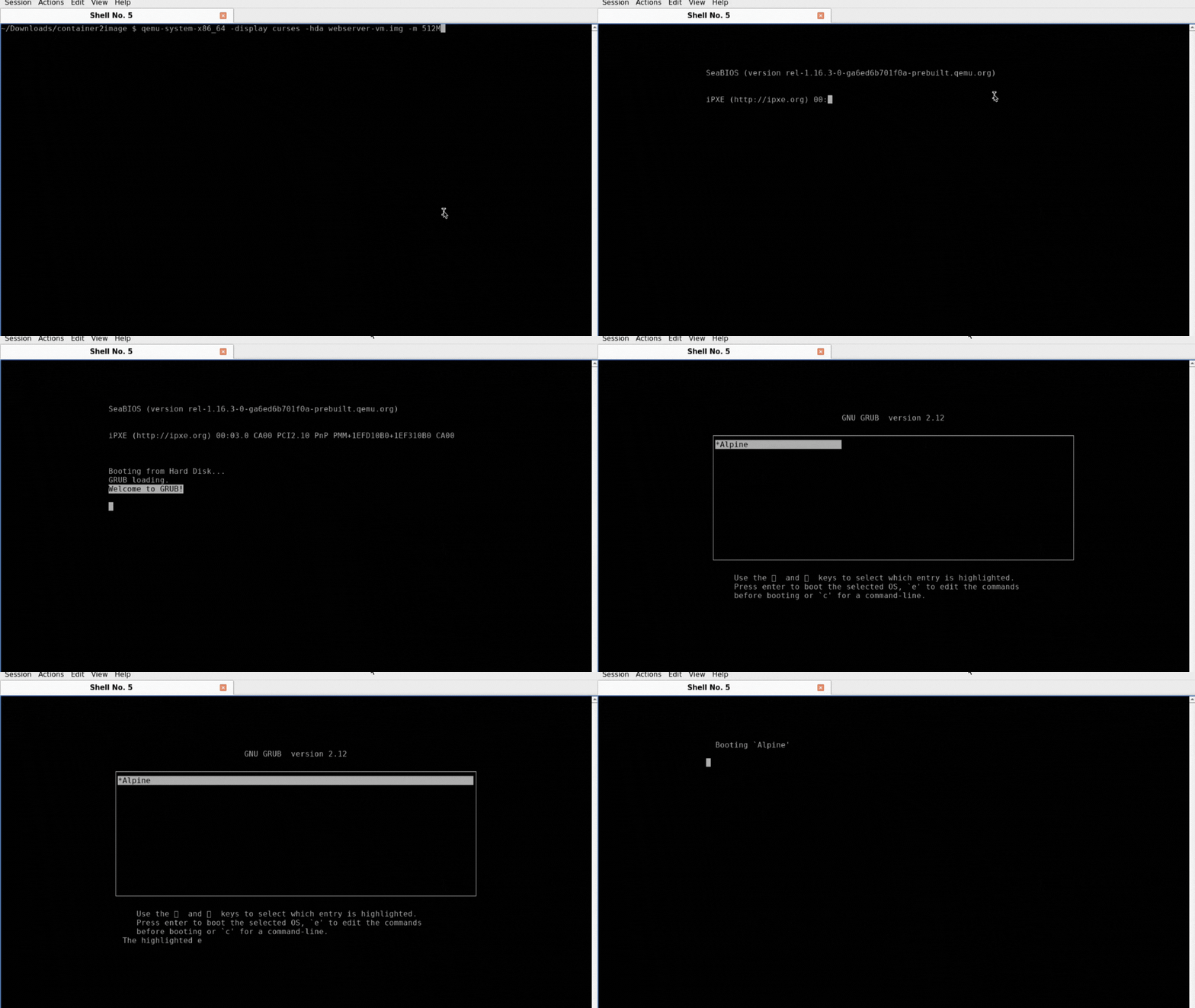
Troubleshooting
I've hit pretty much every possible error while working on this. Here's how to fix the common ones.
Black screen after GRUB
This usually means kernel output is going to the wrong console. QEMU's graphical window expects output on tty0, but serial console output goes to ttyS0.
Fix: Add both console options to your kernel parameters:
console=tty0 console=ttyS0,115200
Or just use serial mode:
qemu-system-x86_64 -hda disk.img -m 512M -nographic
Kernel panic - VFS: Unable to mount root fs
The kernel can't find the root filesystem. This usually means:
- Wrong root device in GRUB config (should be
root=/dev/sda1) - Partition wasn't formatted properly
- Missing filesystem driver in initramfs
Check your GRUB config first. The device name inside the VM is usually /dev/sda, not /dev/loop0.
apk/apt fails in chroot
DNS doesn't work inside the chroot because there's no /etc/resolv.conf or it's empty. The script now copies the host's resolv.conf automatically, but if you're debugging manually:
sudo cp /etc/resolv.conf /mnt/vmroot/etc/resolv.conf
Loop device busy
If you can't detach a loop device, something is still using it. Find what's mounted:
mount | grep loop0
sudo umount /mnt/vmroot/dev
sudo umount /mnt/vmroot/sys
sudo umount /mnt/vmroot/proc
sudo umount /mnt/vmroot
sudo losetup -d /dev/loop0
No free loop devices
losetup -a  # see what's attached
sudo losetup -D  # detach all unused
Running on macOS
If you're on a Mac like me, you can't run this directly - there's no loop device support and chroot works differently. Your options:
- Use a Linux VM - UTM works great on M1 Macs, or use OrbStack
- Docker with privileged mode - Works but can be tricky
- GitHub Actions - For CI/CD, just run it on a Linux runner
End
And that's pretty much it. The core idea is simple: containers are missing boot components, so we add them. The implementation has some quirks around loop devices, chroot, and different distros, but once you understand what's happening at each step, debugging becomes much easier.
If you run into issues not covered here, feel free to open an issue. I've probably hit it before and just forgot to document it.
Thanks for reading!