How to ditch hard code credential when you use AWS CLI
While reading the AWS Well-Architected Framework, I noticed the emphasis on ditching the use of hard code secrets everywhere you can. As a hard coded credential AWS CLI user, I challenged myself to improve it.
Using hard code credential is reliable and easy to set up, all you need is to set some environment variables and it should be good to go. However, it leaves a risk of storing the secrets, most of the time, unencryped on your laptop waiting to be read. You can even check this yourself by reading a file called credentials in your AWS CLI folder. The solution to this problem sounds straightforward, use temporary credentials.
AWS IAM Identity Center (formally AWS Single Sign-on(SSO))
Before you start to panic that this is some enterprise-graded service, it actually is. However, it is also totally free. As the old name suggests, it provides SSO solution. That means, you can use the credential from any identity providers that AWS Identity Center supports to login. Or you can also uses the builtin identity provider from AWS. Once login, a list of AWS accounts can then be assumed based on your policies. This removes the use of traditional use of username/password to login.
Set up AWS IAM Identity Center
Like I already stated, this service is offered at no additional cost as of the time of this writing.
- Start by open up the management console and navigate to IAM Identity Center.
- AWS IAM Identity Center can use a third party identity provider for its SSO or it can also use the builtin identity provider. For this example, I will keep it simple by reusing what AWS offers.
- The two main configurations are users and groups, these are the place you can create a new identity to be used in SSO process. I have created an administrator account for myself
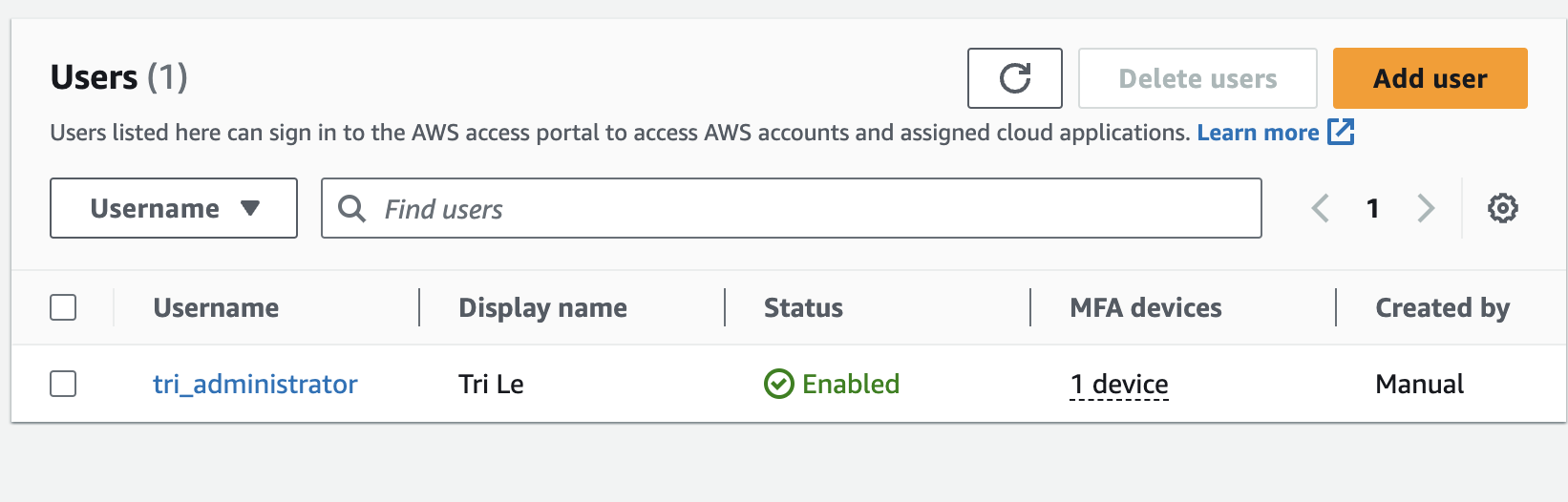 I have also added the account to a group called
 administrators.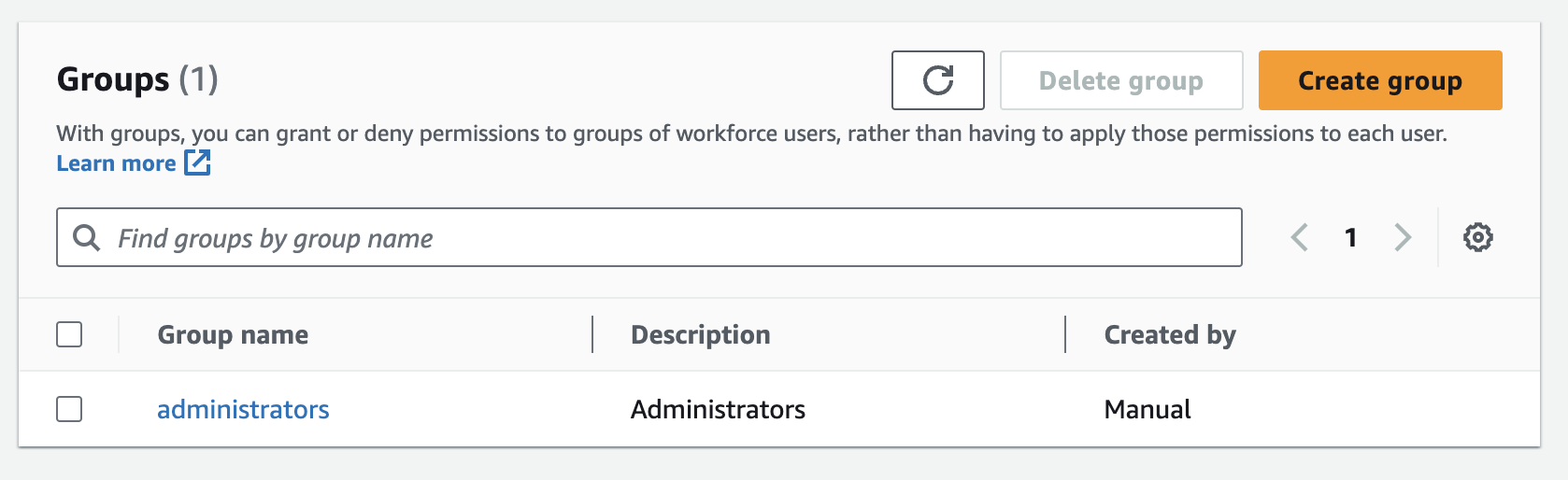 .
. - The permission sets in the AWS Identity Center's tab can be explained as a list of IAM policies that that defines the level of permissions the AWS account has when being assumed. For example, if you assume a root account but the permission set is only
AdministratorAccess, you wouldn't be able to view theBillingconfiguration asAdministratorpermission does not cover theBillingpermission. This is exactly what I need for the management account.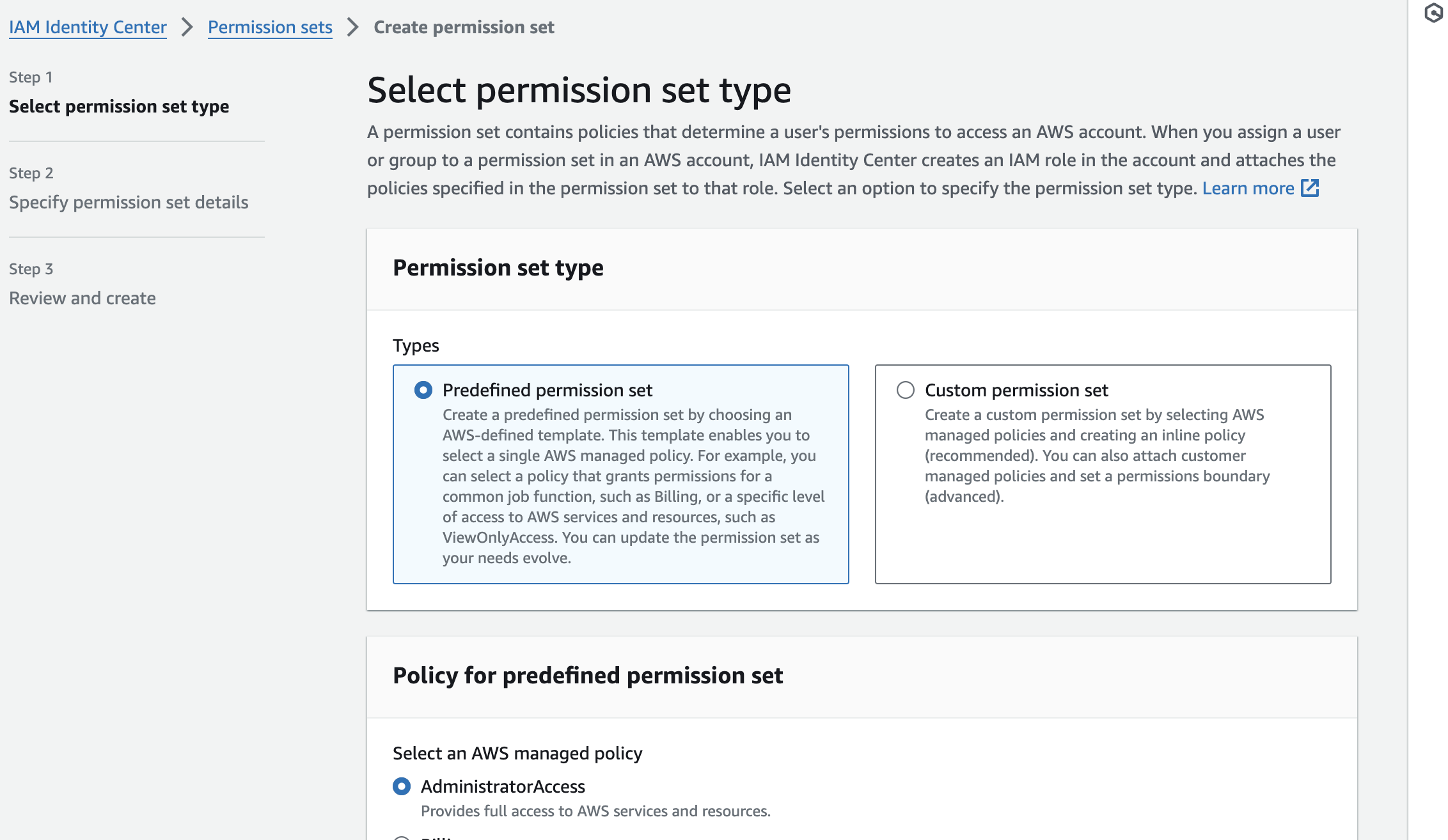
- You can also set how long the federated user stay login inside the permission sets wizard board.
- Then, you can assign the group you have just created to an AWS account in the
AWS accountstab, and select a suitable permission sets to be used for the assumed account.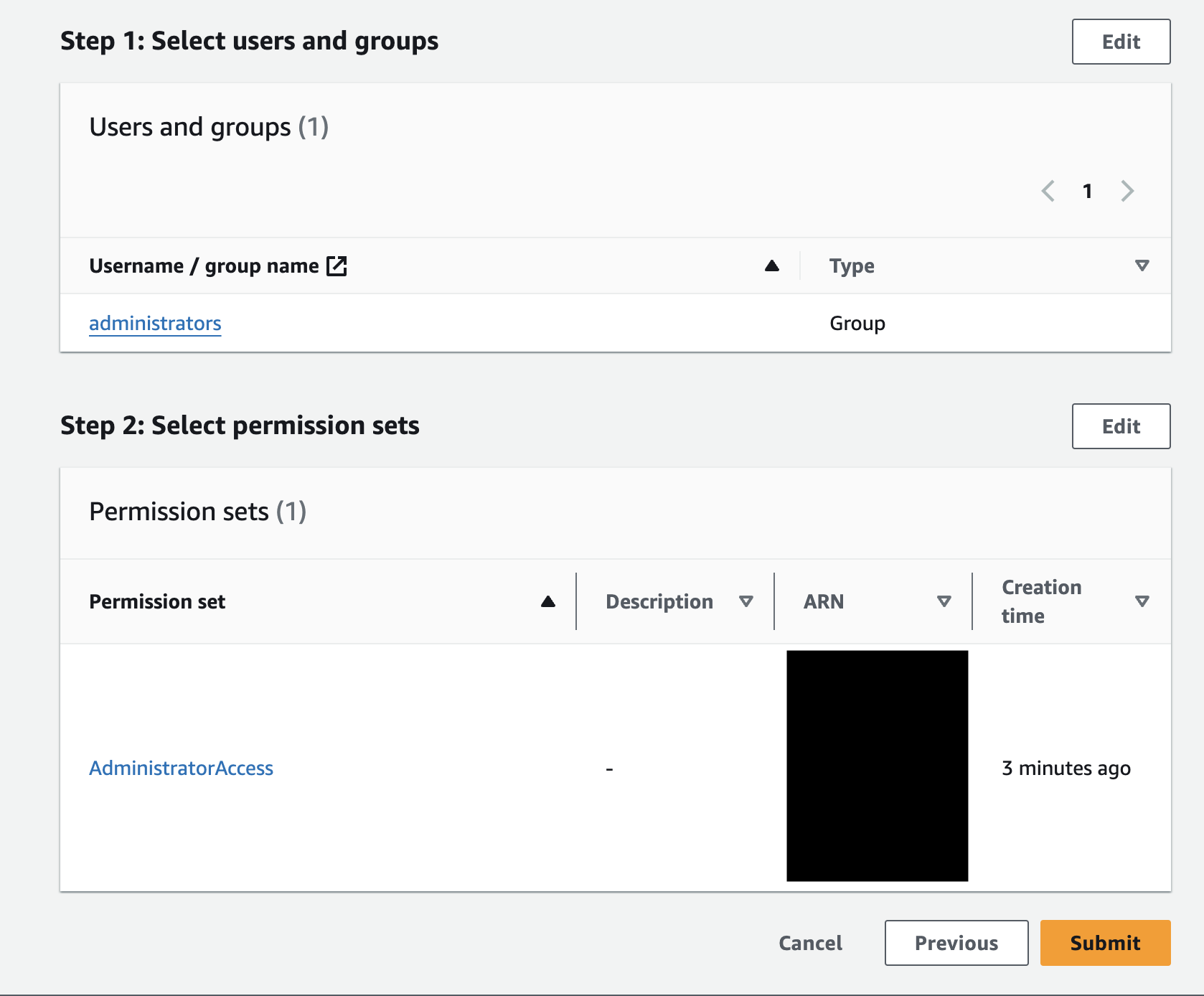
- Once done, you are ready to login using the created account through the provided AWS access portal url in the AWS Identity Center dashboard. For example,
https://d-xxxxxxxxx.awsapps.com/starts - If successful, you should see a screen like this where you can assume the AWS account.
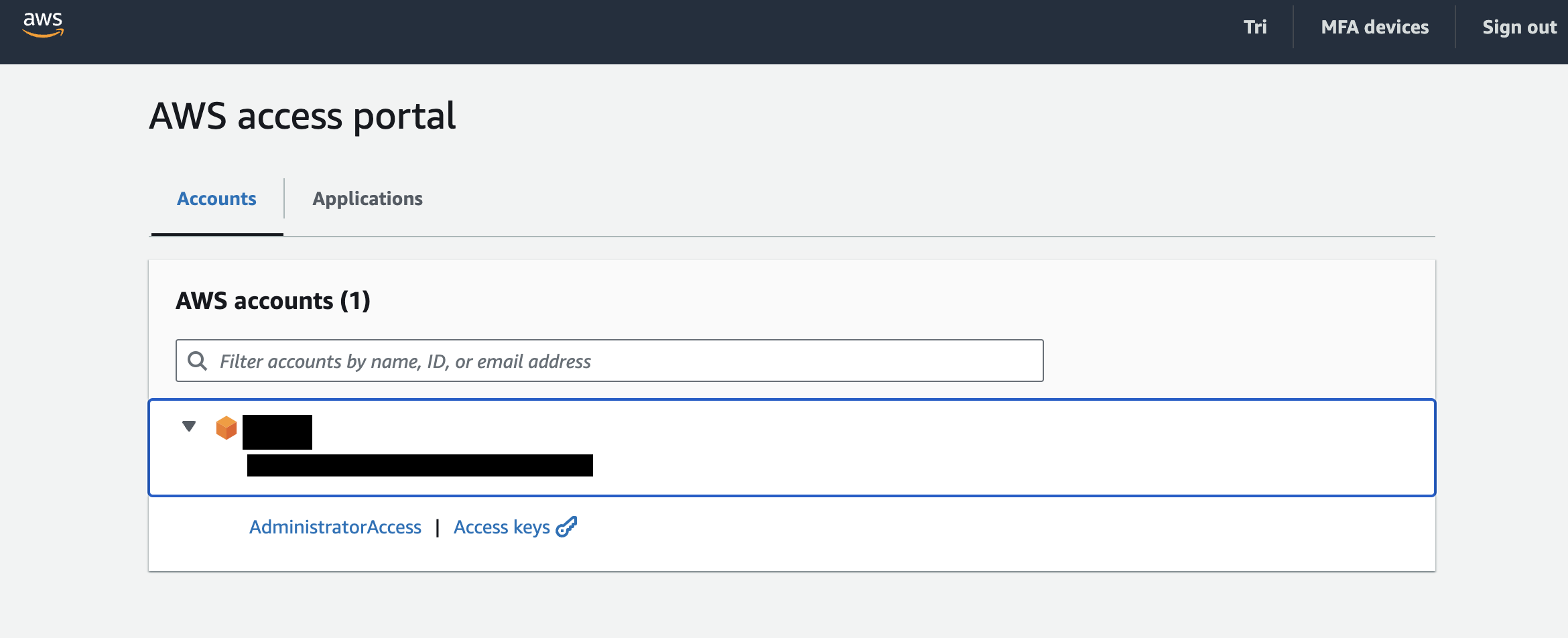
- Congratulations, you have set up your AWS environment to use SSO for authentication.
Set up SSO in AWS CLI
- Setting up SSO in the AWS CLI environment is no more complex than the above task as it is supported out of the box by AWS CLI.
- On your favorite terminal, do a sanity check
aws --version - Then, execute the command
aws configure sso - For
SSO session name, you can use any memorable name, the value forSSO start URLshould be the AWS access portal url from above. ForSSO registration scopes, go with the default value. This is a popular argument used in Oauth 2.0 protocol to define the scope the federated user can access the authorisation server. - Then, the terminal will promp you to login into the SSO page again. Once done, you can now use AWS CLI as an authenticated user by using a temporary AWS security key configured automatically by AWS CLI.
- You can check if the authentication works by running
aws s3 ls
to view the list of your S3 buckets. - Depends on the the login time specified in the permission sets, you will need to reauthenticate by executing
aws sso login --profile <your SSO session name>
End
And there you have it, you have set up both the management console and the AWS CLI to use temporary authentication credential using SSO and eliminate the use of fixed password. Thanks for reading as always, you are more than welcome to connect with me through my social account at the footer of this website and let me know of any errors I made!